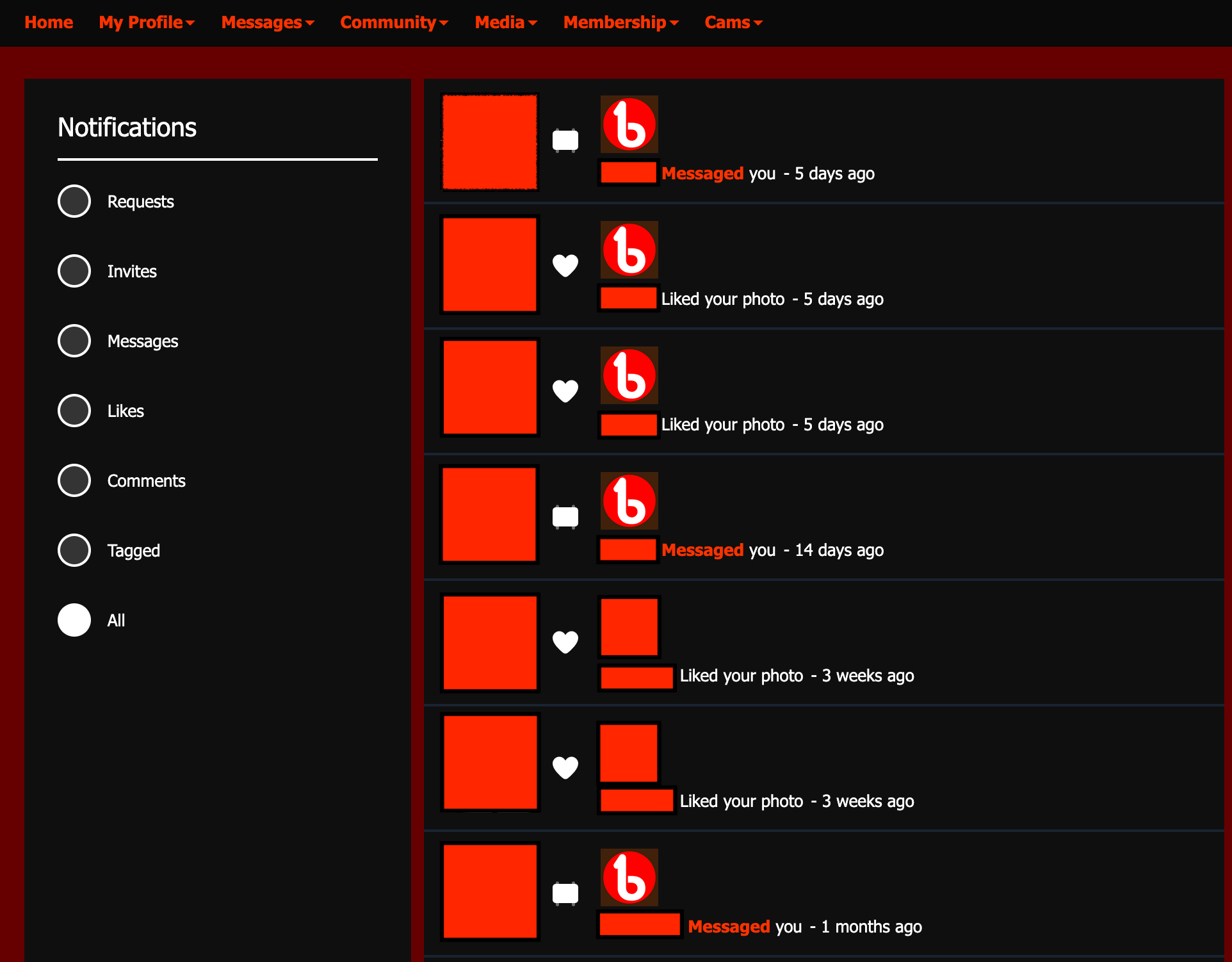
Following member feedback from the BateWorld survey, we've refreshed how your notifications and updates display to make it easier to see who has interacted with you. From now, notifications are categorized into the following areas: Requests, Invites, Messages, Likes, Comments, Tagged and All.
When you receive a new notification, a red dot will appear over a bell icon. When selecting, instead of the pop-up box you've been used to, you're taken to the notifications overview page to review.
Another difference to the feature is that notifications persist in the list, making it easier to refer back to. It's not possible to delete notifications as before.
How to Access Your Notifications
Via Mobile
When logged in, tap your profile picture at the top right. A fold will open and the notification bell icon will display. If you have new notifications there will be a red dot. Tap the icon to see your notifications. Alternatively, select My Profile then My Notifications.

Via desktop
From the main menu, a bell icon can be viewed on the right. Select to view. If you have new notifications there will be a red dot. Alternatively, select My Profile then My Notifications.
Requests
All friendship requests are grouped here where you can confirm or reject the friendship request. To check out the profile of the bator who sent you a friend request, either select the thumbnail image to the left of the notification or the highlighted username.
If you're a group leader, group join requests will also appear in this category. To know which group the member is requesting to join, select the thumbnail image to the left of the notification. If your group does not have a cover image, the 'b' logo will appear. To check out the profile of the bator wanting to join, select the highlighted username.
Invites
Invites to events are categorized here. To know which event you've been invited to, select the thumbnail image to the left of the invite. From the event page you can either accept or decline the invite.
Messages
With message notifications, either select the thumbnail image to the left of the notification or the highlighted word, Messaged next to the username who sent the message to get to your inbox. The notification does not take you to the message directly.
Likes
If you've received a new like, select the thumbnail image to the left of the notification to be taken to the image that received the like. Select Like under the image and a pop-up will appear with a list of likes, the most recent being at the top of the list.
Comments
With comments, select the thumbnail image to the left of the notification to be taken to the page where the comment was made. The notification does not take you to the comment directly.
If you're a group leader, select the thumbnail image to the left of the notification to be taken to your group page, then choose Comments from the tab.
Tagged
In the tagged section, any media that you've been tagged in will appear here. All that's needed is to select the thumbnail image to the left of the notification and you'll be taken to the media you've been tagged in to review.
Was this article helpful?
That’s Great!
Thank you for your feedback
Sorry! We couldn't be helpful
Thank you for your feedback
Feedback sent
We appreciate your effort and will try to fix the article